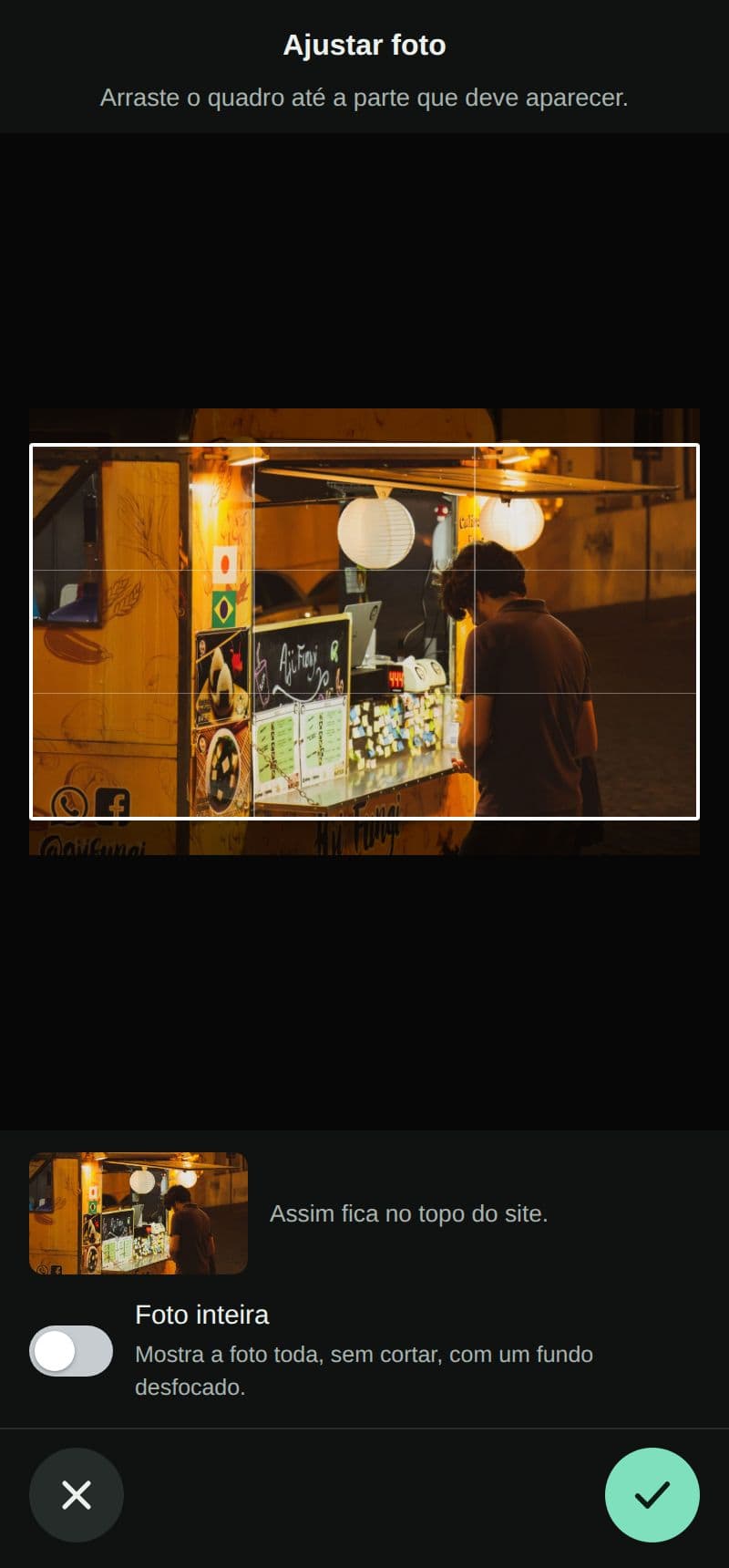
Change a photo from your phone and choose the part that shows on your site, so no head or dish gets cut off.
- Change photo: from your phone's gallery, or take one right away. The editor shrinks the photo by itself, so the site stays fast.
- Adjust framing: drag the frame to the part that should show.
- Whole photo: shows all of the photo, uncropped, over a blurred background.
- Photo description: a sentence about what it shows, which helps people who can't see it, and Google.
It works on the top photo, About, highlights, notices, menu items and the gallery (up to 30 photos). It is part of the site, at no extra cost.
How to do it in the editor
The editor is in Portuguese; the button names are in quotes.
- In the editor, tap the photo.
- Choose “Trocar foto” (change photo), “Ajustar enquadramento” (adjust framing) or “Descrição da foto” (photo description). In the gallery also: “Mover para antes”, “Mover para depois” (move earlier, later) and “Tirar da galeria” (remove from the gallery).
- In the adjust screen, drag the frame or switch on “Foto inteira” (whole photo), and tap ✓.
- Tap “Publicar” (publish).
An item's photo is in “Ver detalhes ›” (see details), in the menu. To add a new photo to the gallery, tap “Adicionar foto” (add photo). Videos only I change: send them to me on WhatsApp.