A QR sticker on the counter: every customer who points the camera reads a different line, good morning, gratitude or encouragement, or your own lines.
It is a simple way to give customers a smile while they wait for their order, and to bring them back to your site. The line shows on a colourful background that also changes with every scan, and below it comes your business's name, with the link to your site. Stick it on the counter, a table, the packaging or a card. It is part of the QR Pro add-on (R$ 30/month): talk to me and I switch it on for your site.
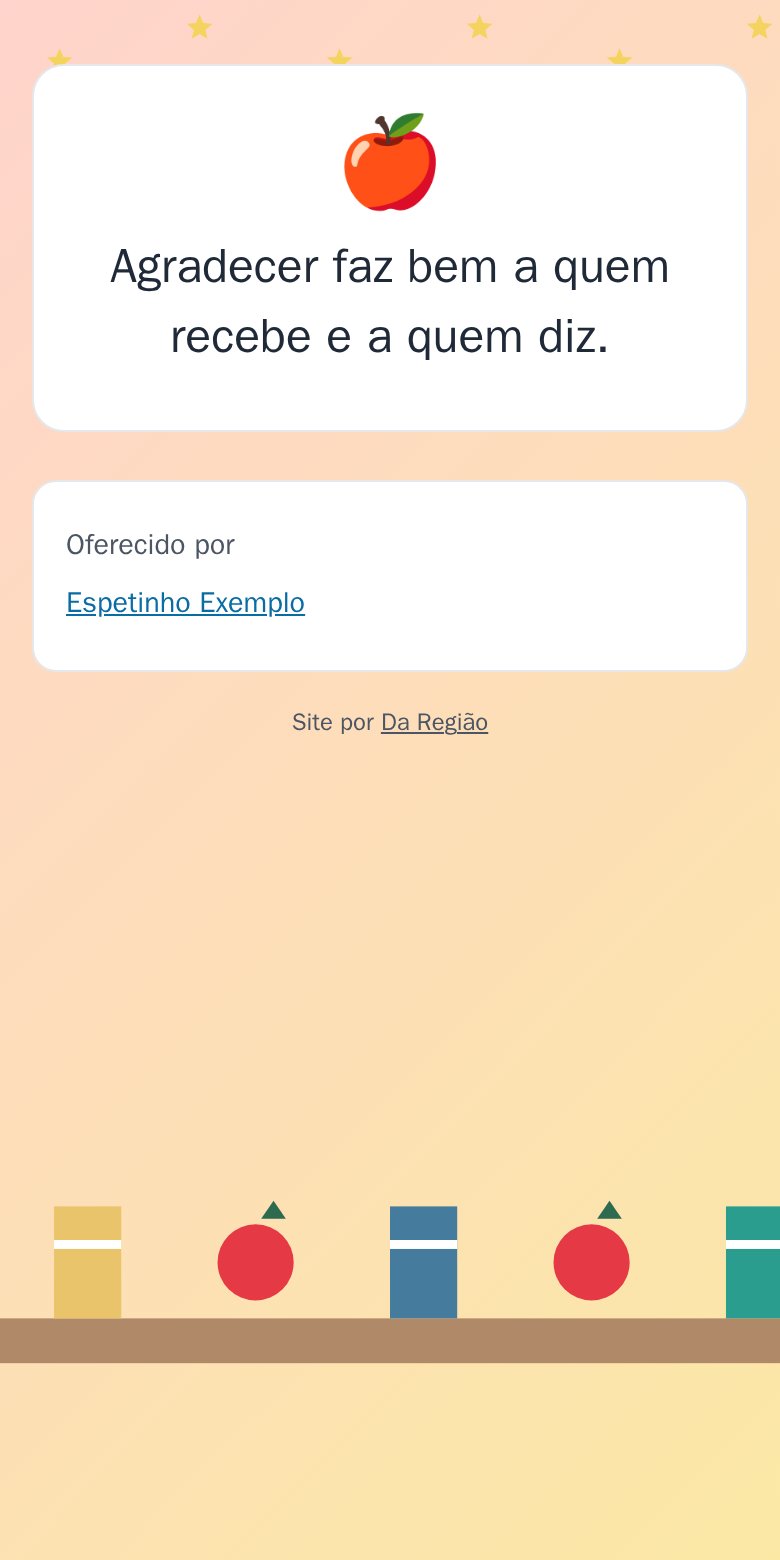
This is how the page looks on a phone. See a live example: every time you open that link, another line shows.
Ready-made lines or your own
- Ready-made lines: three groups, Bom dia (good morning), Gratidão (gratitude) and Ânimo (encouragement), with about 30 short lines each. I reviewed each one: no religion, medicine or money, and no line is made up by artificial intelligence at scan time. You don't need to do anything in the editor to use them. The lines are in Portuguese, so the page is for sites in Portuguese.
- Your own lines: up to 50 lines of up to 200 letters each. For example “Obrigado pela visita!” (thanks for coming) or “Hoje é dia de bolo quentinho.” (today is warm cake day). Once you write your own, the page shows only yours.
- Bible verses: want verses instead of the lines? Talk to me and I switch them on. The text is the exact text of the Bíblia Livre translation, and each page carries a small line crediting the translation.
How to do it in the editor: your own lines
1. In the editor, tap Mais (more), then Ferramentas (tools) and Mensagem ao acaso (random message). It only shows once I have switched the page on for your site.
2. Under Suas frases (your lines), write one line per row. Below, the editor counts how many lines you have. If a line is too long or has a link, a note says which line to fix: the page only leads to your site, so it takes no links.
3. If you like, fill in Linha do rodapé (opcional) (footer line, optional). It shows below the line, for example “Peça pelo WhatsApp” (order on WhatsApp). No links here either: your site's name already shows there, with its link.
4. Check the Amostra (sample). It shows one of your lines as it will look. Tap Outra amostra (another sample) to see another.
5. Tap Pronto (done) and then Publicar (publish). The lines go into the draft and only count on the site once published.
To go back to the ready-made lines, delete all your lines, tap Pronto and publish.
How to make the QR sticker
1. In the editor, tap Mais, then Ferramentas and Meus QR codes (my QR codes).
2. Tap + Adicionar QR code (add QR code) and give it a name, for example “Balcão” (counter).
3. In Escolher do site (pick from the site), find the group Mensagem ao acaso and pick Todas as mensagens (all messages). If your site uses the ready-made lines, you can also pick a single group, such as Bom dia, and make a sticker for each group.
4. Tap Guardar no rascunho (save to draft) and then Publicar.
5. Print the stickers. In Mais → Ferramentas → Cartões com QR code (cards with QR code), pick Adesivos (stickers), tick your QR code, say how many and what size, and tap Imprimir (print). Or download the QR code as SVG or TIFF for a print shop. Test it with your phone's camera before printing many. More in your site's QR codes.
With QR Pro you can make a QR code for each place (counter, table, packaging) or for each group of lines. Every scan is counted, and you see how often each QR code was scanned, per day: so you know where people scan most.
Good to know
- A new line with every scan. Someone who reloads the page keeps seeing the same line, and can send the link to a friend, who sees the same line. Scanning the QR code again gives another one.
- Nothing is kept on the customer's phone. The page uses no cookies, asks for nothing and does not show up on Google.
- The footer always shows “Site por Da Região” (site by Da Região), very small, as on the rest of your site.
- The page lives at yoursite.com.br/mensagem.