From the order on the site to the ticket on paper: what the customer does, what you do, phone or counter orders, and what to set up once.
This is the step-by-step guide to printed orders, for you and for whoever works in the kitchen. It works together with the online order. To see what the ticket and the day's list show, read Printed orders and the order list.
An order made on the site
1. The customer orders. They choose the items on the site, add their name and how they will pay, and send it on WhatsApp.
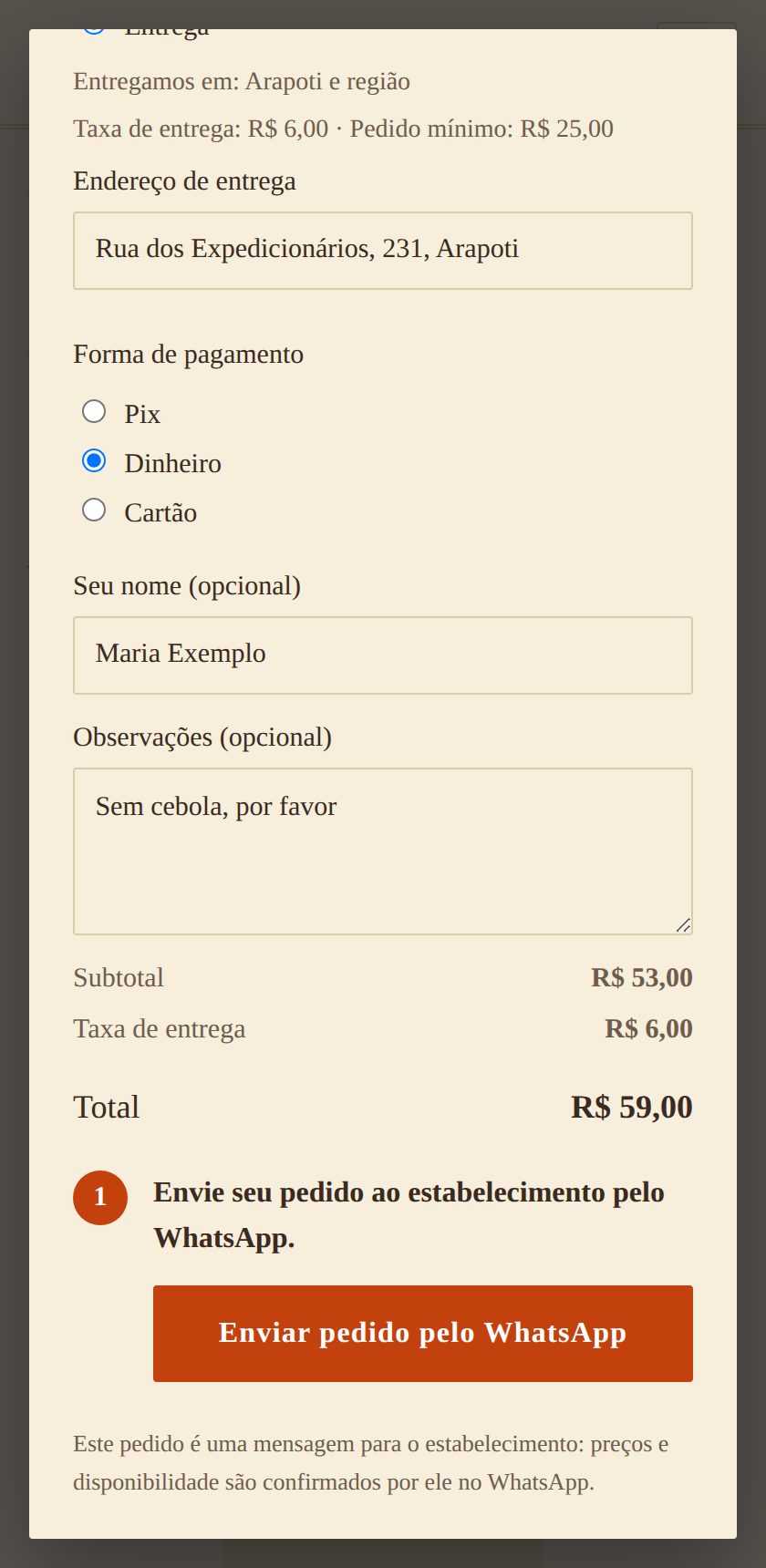
2. The message arrives on the restaurant's WhatsApp. The last line is Imprimir pedido (Print order), a link.
3. Open the link on the device connected to the printer. The first time on that device, the site asks for the restaurant's PIN. It is kept on the device, so you type it once.
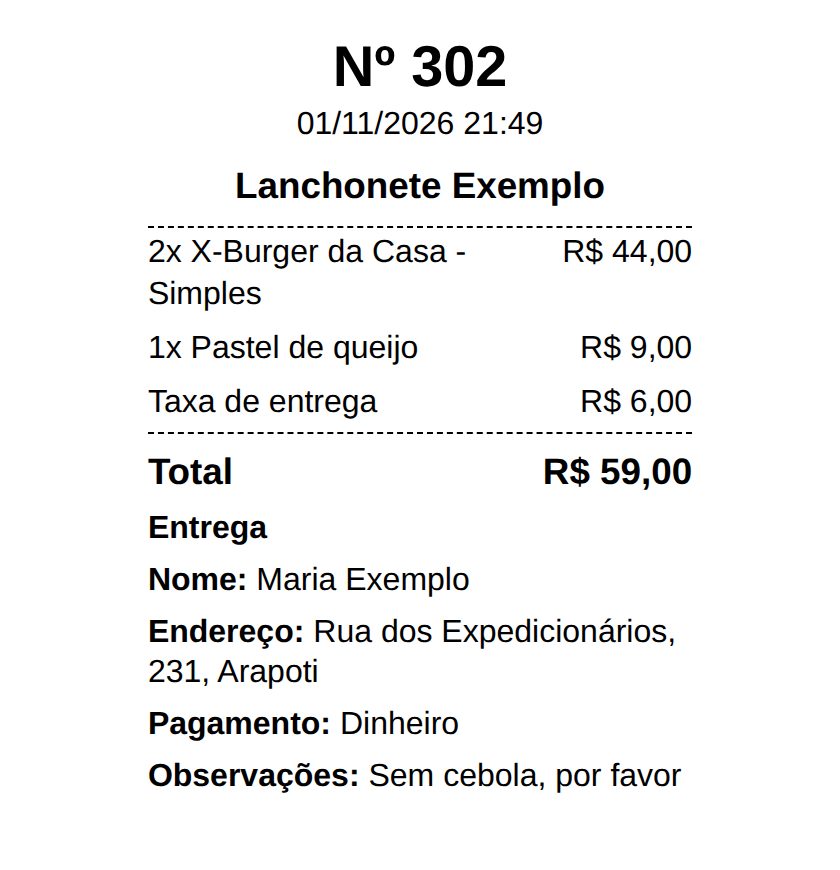
4. Tap Imprimir (Print). The ticket comes out with the order number. Printing the same order again keeps the same number.
A phone or counter order (optional)
Not every order comes through the site. This step is optional: it only serves to keep the day's list and totals complete, because an order that did not go through the site is not on the list. For an order that comes by phone, by a typed message or at the counter, the site has a staff mode:
- Open your site's address followed by /#equipe (for example, `yoursite.com/#equipe`). On a phone, add it to the home screen so it opens with one tap.
- Build the order. It is the same menu as the customer's, with the same prices, days and sold-out items. The customer's name is required.
- Tap Imprimir pedido (Print order). WhatsApp does not open. The ticket comes out marked Telefone/Balcão (Phone/Counter), and the order goes on the day's list with the same mark.
A customer who opens that address can only build an order and see the ticket: the order number only comes with the PIN, and staff mode gives access to nothing else.
This mode is included in printed orders at no extra cost.
Set up once
- Connect the printer to the device that will print (phone, tablet or computer) and load the paper. The widths I set up are an 80 mm or 58 mm roll, or an A4 sheet.
- On the first print, choose the printer in the browser's print window. Nothing prints by itself: it only prints when you tap Imprimir.
- Make a test order on the site and print it, to check that the text fits the paper and the number shows.
- Write the PIN down and keep it somewhere safe.
Good to know
- No number? Tap Imprimir again. If it still does not come, the ticket still prints, just without a number.
- New device or new employee? The PIN prompt has Imprimir sem número (Print without a number), so nobody is stuck.
- At the end of the day, the list of printed orders shows the totals for the day, week and month. It counts what was printed, not what was paid.
- Name, address and notes are not stored on the site: they come in the WhatsApp message and only appear on the ticket.
How to switch it on
I switch it on and set it up for you: tell me the paper width, the payment methods and the next order number. Printed orders cost R$ 20/month and need the online order, also R$ 20/month. Want it for your business? Message me on WhatsApp.