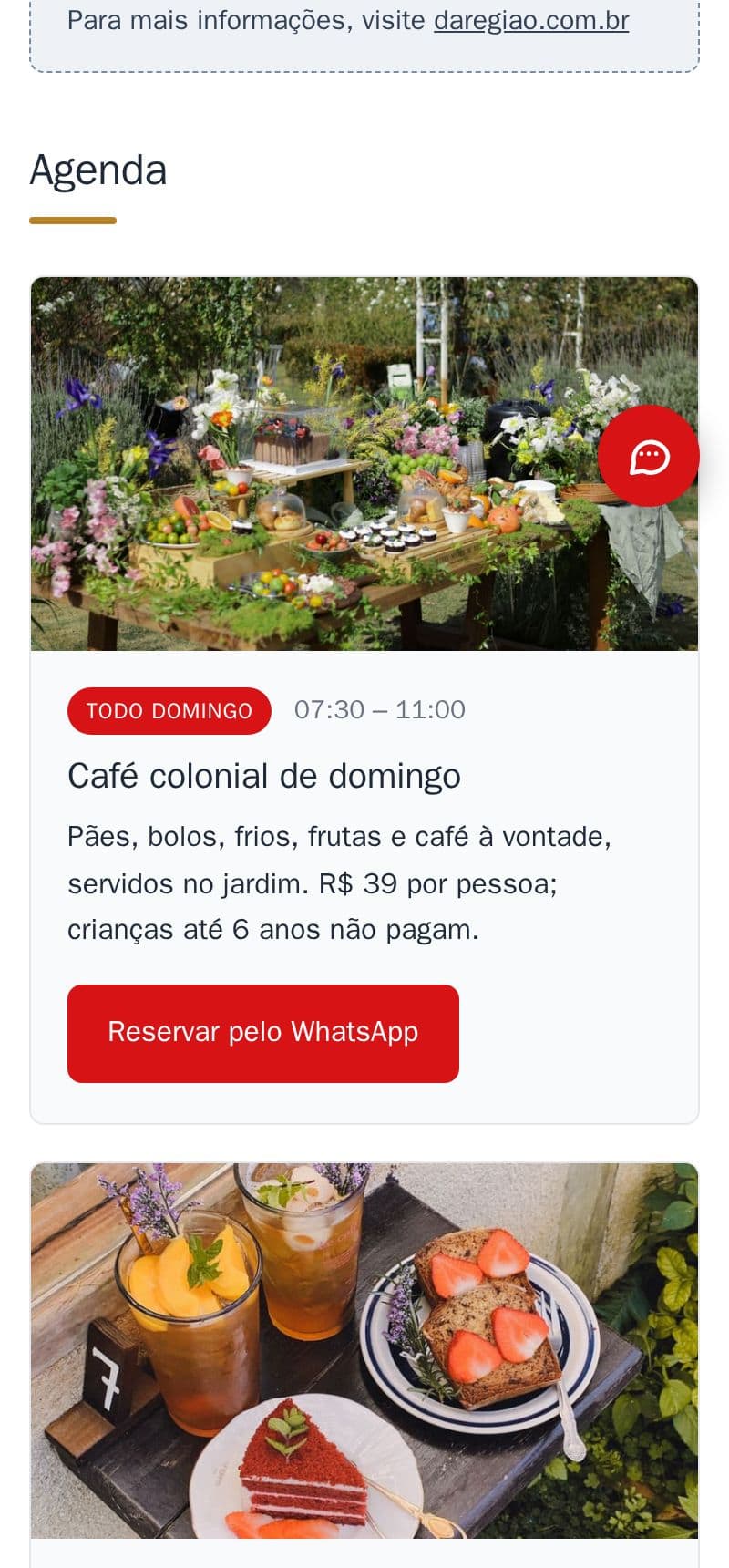
Events, offers and holidays that show on your site on the right day and disappear by themselves afterwards, with nothing to remember.
- Events: notices with a photo, like “Every Wednesday: cake day” or “Live music on Saturday”, with a button to book on WhatsApp if you like.
- A notice banner at the top of the site, like “Open on the holiday”.
- Holiday hours: highlighted 2 weeks before, sent to Google, and gone after the date.
It is part of the site, at no extra cost. See the events of the example bakery and the banner of the example restaurant.
How to do it in the editor
The editor is in Portuguese; the button names are in quotes.
An event or notice:
- In the editor, in “Agenda” (events), tap “+ Adicionar aviso” (add notice).
- Write the title and the text, and tap the photo to pick one if you like.
- Tap the notice's date and choose when it shows: “Toda semana” (every week), “Um dia” (one day), “Entre datas” (between dates) or “Sempre” (always). Tap “Pronto” (done).
- Want the booking button? Switch on “Botão do WhatsApp” and write the ready-made message.
A holiday:
- In “Horário de funcionamento” → “Feriados e datas especiais” (opening hours → holidays and special dates), tap “+ Adicionar feriado” (add holiday).
- Choose the date and write its name, like “Natal” (Christmas).
- Leave “Fechado” (closed) on, or switch it off and write that day's hours.
Everything ends with “Publicar” (publish). For the banner at the top, ask me on WhatsApp: after that you change its text and dates yourself in “Agenda”.