Create a PIN in the editor and log in on your phone in seconds, without waiting for the e-mailed code, even after you tap Sair. Step by step with photos.
When you tap Sair do editor (log out), the next visit asks for a 6-digit code by e-mail. With a PIN of your own, that phone logs in straight away, for 30 days after the last code. It suits people who use the editor every day, like a kitchen, and the times the e-mail is slow to arrive.
Create the PIN (once)
1. Log in as usual. Type the registered e-mail and the 6-digit code that arrives there. If the e-mail does not arrive, I send you a code on WhatsApp and you use Já tenho um código (I already have a code).
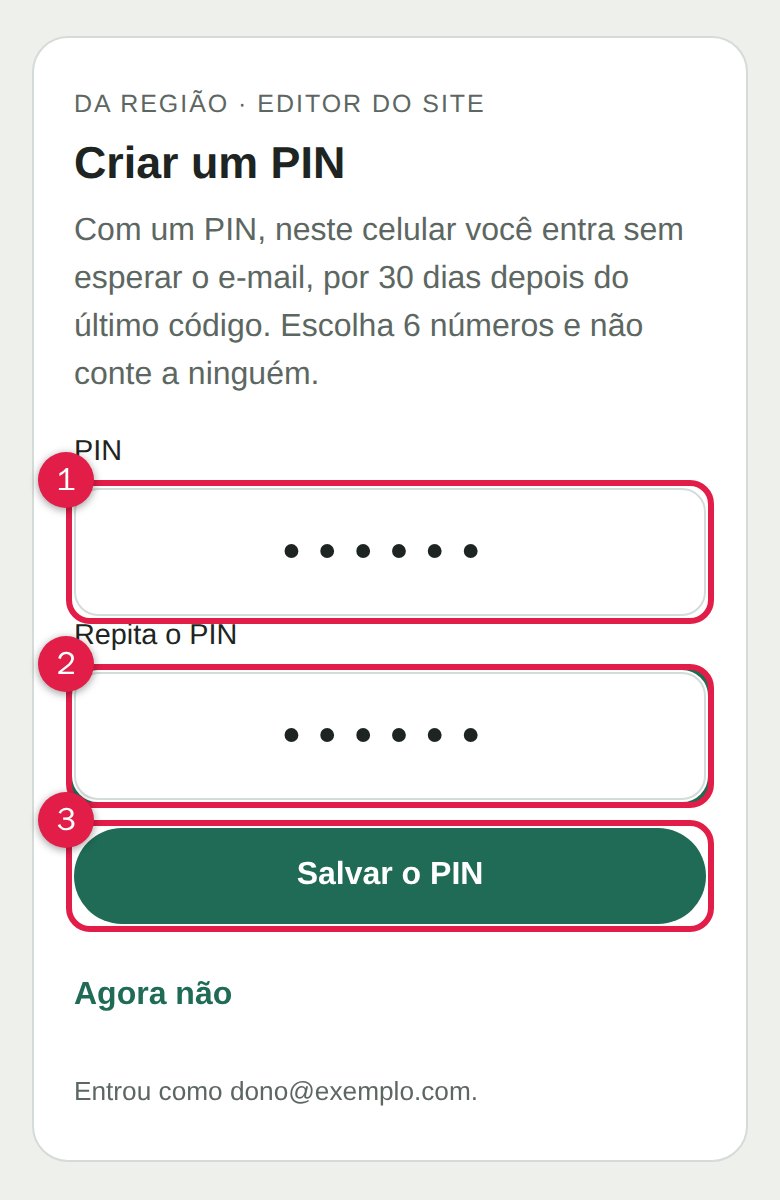
2. Tap Criar um PIN (create a PIN). It appears right after you log in. Type 6 numbers (1), type them again to confirm (2) and tap Salvar o PIN (3) (save the PIN). Want to do it later? Tap Agora não (not now).
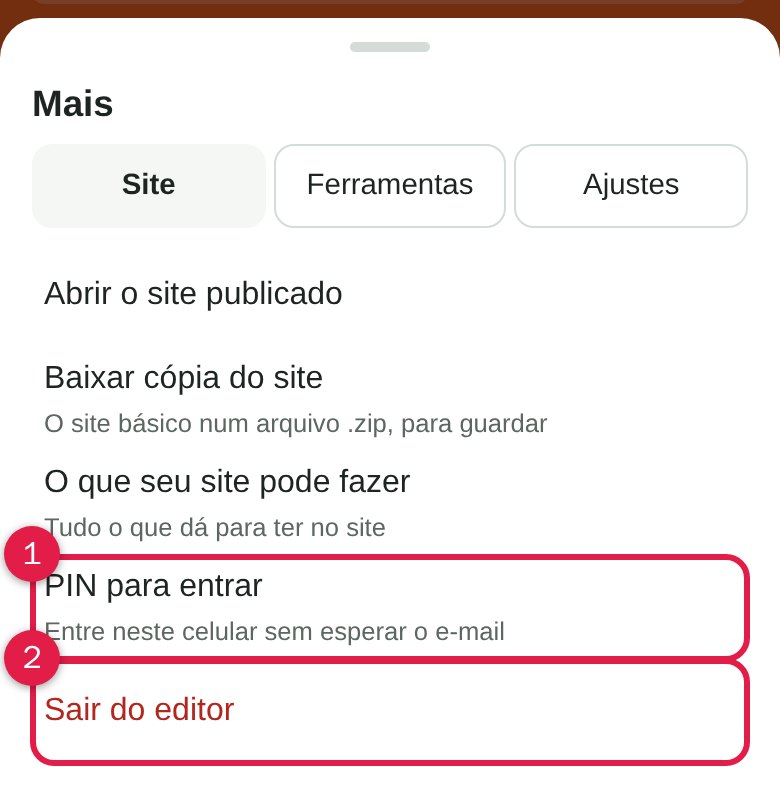
3. Done. The message PIN criado (PIN created) appears. To change or delete the PIN later, tap Mais (more), on the Site tab, and then PIN para entrar (1) (PIN to log in).
Log in with the PIN
1. When you finish, tap Mais and Sair do editor (2). Log out without worry: the phone is still known.
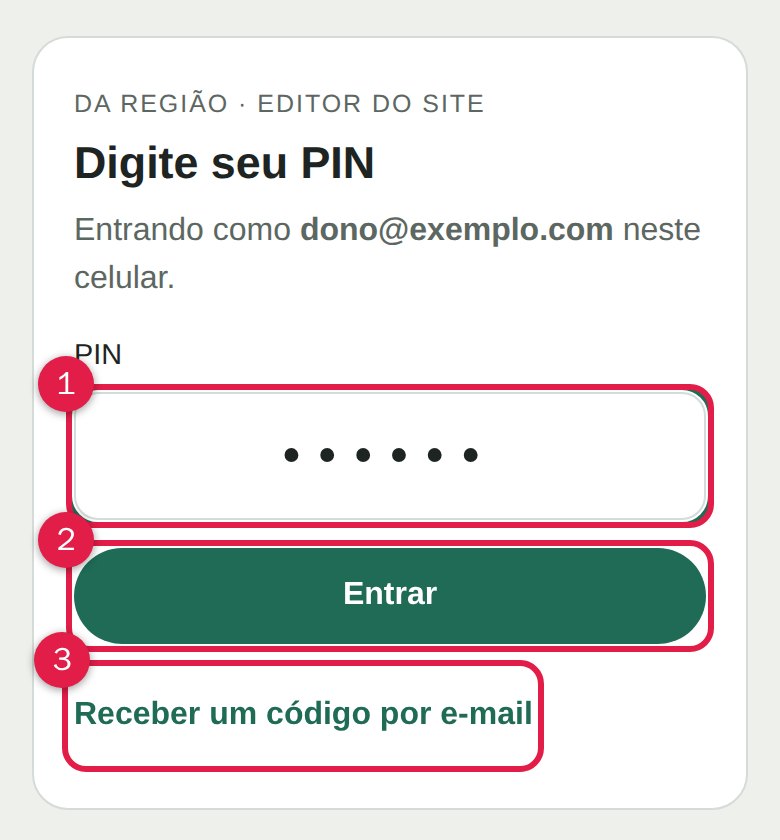
2. Next time, open editar.daregiao.com.br. It shows Digite seu PIN (type your PIN). Type the PIN (1) and tap Entrar (2) (log in). Forgot the PIN? Tap Receber um código por e-mail (3) (get a code by e-mail).
Good to know
- Only on the phone where you created the PIN. On another phone or browser, you get the code by e-mail once and the editor offers the PIN again: type your usual one, or pick another. There is one PIN per e-mail address, so a new PIN replaces the old one.
- It lasts 30 days, counted from the last code sent by e-mail. After that the editor asks for a code, and the count starts again.
- Five wrong PINs lock the PIN. Then just log in with a code by e-mail, and the PIN works again.
- The PIN is yours alone. Whoever takes your phone and knows the PIN gets into the editor: tell no one, and use numbers that are not your card password.
- Not even I can see your PIN. The site only keeps a scrambled version of it.
How to turn it on
It costs nothing, but it comes switched off: I turn it on for your site: message me on WhatsApp and tell me which site is yours.